How to Set Up Apple Watch: First-Time Setup Guide

Here’s how to set up Apple Watch without getting stuck: update your iPhone, turn on Bluetooth, connect to Wi-Fi or cellular, and put the watch on its charger.
Then hold the watch near your unlocked iPhone and pair it. Choose new setup or a backup restore, sign in, create a passcode, and wait for sync. If the watch is used, do not start pairing until the previous owner has erased it and removed Activation Lock.
Before You Start
- Compatible iPhone: Apple Watch Ultra 3, Series 11, and SE 3 need iPhone 11 or later with iOS 26 or later. Check Apple’s compatibility table for older models.
- iPhone updated to the latest iOS version it supports.
- Bluetooth on, with Wi-Fi or cellular data available.
- Your Apple Account password.
- Enough Apple Watch battery, or the charger nearby.
- Used watch: previous owner has erased it and removed Activation Lock.
- Cellular setup: carrier login or plan details.
How to Set Up Apple Watch With iPhone
Setup runs through Apple’s Apple Watch setup flow in the Watch app on iPhone. Keep the watch and iPhone close together until syncing finishes.
- Turn on the watch: press and hold the side button until the Apple logo appears.
- Bring it near your iPhone: unlock the iPhone and wait for the setup prompt. If no prompt appears, open the Watch app, tap All Watches, then tap Add Watch.
- Choose who it is for: tap Set Up for Myself for your own watch. Use the family option only when the wearer will not use their own iPhone.
- Pair the watch: hold the iPhone over the pairing animation. If the camera method fails, tap Pair Apple Watch Manually and follow the code on the watch.
- Choose new or backup: restore from backup if you are replacing a watch you liked. Set up as new for a first watch or a clean troubleshooting start. You may need to install a watchOS update before setup continues.
- Sign in and choose wrist: use the Apple Account you want tied to iCloud, Find My, app downloads, backups, and Activation Lock.
- Create a passcode: Apple Pay requires one, and it protects health data and notifications.
- Review health and safety: enter date of birth, height, Medical ID, and emergency contact details carefully.
- Set up or skip cellular: if you have a GPS + Cellular model, you can activate cellular now or add it later.
- Wait for sync: keep the iPhone nearby while apps, settings, and data finish syncing.
Setup Choices That Matter
These are the setup choices most likely to matter later.
- New vs backup: restore if you want your old faces, app layout, and settings back. Start new if you want a clean watch.
- Passcode: create one. Apple Pay requires it, and it protects health data and notifications.
- Health and safety: check Medical ID, emergency contacts, Fall Detection, and any supported health notifications.
- Cellular: skip it unless you need calls, messages, maps, and notifications when the iPhone is away. You can add it later from Watch app > Cellular; Apple also has separate cellular setup steps.
- Carrier rule: for normal pairing, the iPhone and Apple Watch usually need the same carrier. Apple Watch For Your Kids is the documented exception.
If You Bought a Used Apple Watch
Do not buy or start pairing a used Apple Watch unless the previous owner has removed it from their Apple Account.
Ask the previous owner to unpair the watch in the Watch app on their iPhone. Apple also explains what to check before you buy an Apple Watch from someone else. Unpairing erases the watch, creates their final backup, and removes Activation Lock.
If setup asks for someone else’s Apple Account, the watch is still locked. Resetting it again will not bypass Activation Lock on Apple Watch. Ask the seller to remove it from Find My or enter their Apple Account during setup. If they cannot, return it.
If the watch is yours and you no longer have the paired iPhone, follow our guide to unpairing an Apple Watch without an iPhone.
How to Set Up Apple Watch for a Child or Family Member
Use Apple Watch For Your Kids only when the wearer will not use their own iPhone. You still need an iPhone for setup and management.
You need Family Sharing, an Apple Account for the wearer, and an organizer or parent/guardian to run setup. The watch must be a cellular Apple Watch Series 4 or later, or a cellular Apple Watch SE, with watchOS 7 or later. You do not need to activate a cellular plan during setup, but calls, messages, and location sharing away from Wi-Fi require one.
This setup limits some health, Apple Pay, and companion-iPhone features. Availability also varies by country, region, and carrier.
If Apple Watch Will Not Pair
If the pairing screen never appears, check these items before you erase the watch.
- Charge the watch and keep it next to the iPhone.
- Unlock the iPhone.
- Turn on Bluetooth.
- Connect the iPhone to Wi-Fi or cellular data.
- Update the iPhone.
- Restart both devices.
- Try Pair Apple Watch Manually if the camera animation fails.
If setup says the watch is paired to another iPhone, erase it and try again. Activation Lock means only the Apple Account owner can unlock it.
When setup requires a watchOS update, keep the watch on its charger and the iPhone nearby until the update finishes. If the update fails, check battery level, network connection, and whether the iPhone also needs an iOS update.
First Settings to Check After Setup
After pairing, open the Watch app and check:
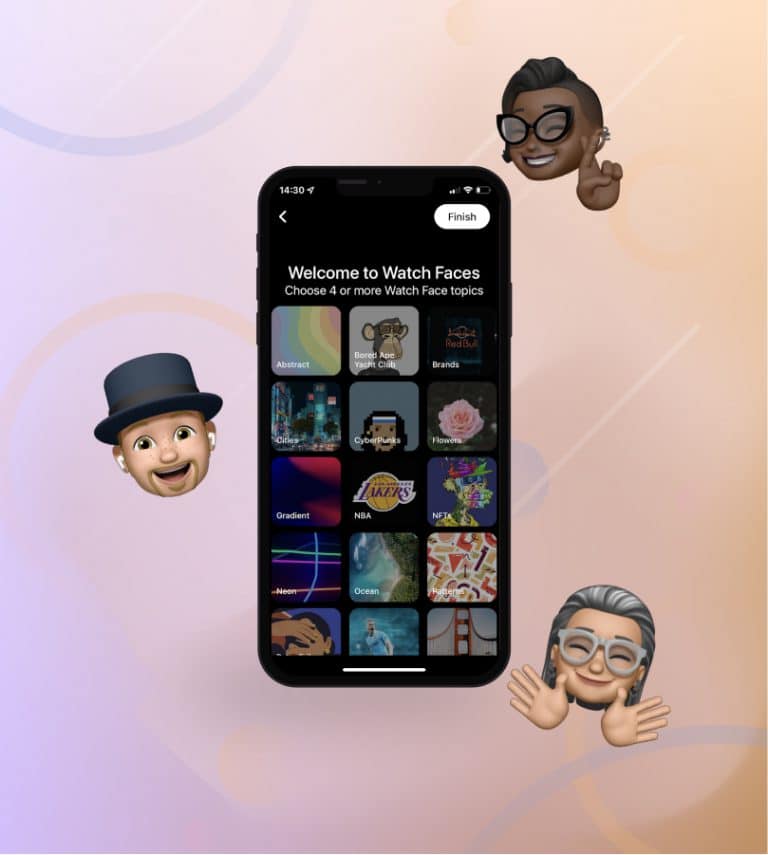
- Watch face: choose a readable face and add only the complications you use. Our Apple Watch face guide covers that part step by step.
- Notifications: turn off noisy apps first.
- Find My: confirm the watch appears in your device list.
- Wallet & Apple Pay: add cards if you skipped them.
- Health: check Medical ID, emergency contacts, and fitness details.
- Software Update: install any postponed watchOS update.
- Sleep: set up Sleep if you plan to wear the watch overnight. Use the Apple Watch sleep tracking guide for the full setup.
Frequently Asked Questions
Set up as new for a first watch or a clean troubleshooting start. Restore from backup if you want your old watch faces, app layout, settings, and available data back.
No. Apple Watch setup requires the Watch app on a compatible iPhone. An iPad, Mac, or Android phone cannot run the pairing flow. For Android edge cases, read our guide to using an Apple Watch with Android.
Apple Watch Ultra 3, Series 11, and SE 3 need iPhone 11 or later with iOS 26 or later. Older Apple Watch models can have different iPhone and iOS requirements.
Sometimes. Apple Watch For Your Kids lets a family member use a supported cellular Apple Watch without their own iPhone. Another person still needs an iPhone for setup and management.
No. You can set up and use a GPS Apple Watch with a nearby iPhone. Cellular is optional unless the wearer needs calls, messages, or location features away from the iPhone or Wi-Fi.
Pairing can take a few minutes. A watchOS update, backup restore, cellular activation, or large app sync can stretch setup much longer.
Ask the previous owner to remove the watch from their Apple Account or enter their Apple Account during setup. If they cannot do that, return the watch.