How to Change Apple Watch Face: Step-by-Step Guide

Changing your Apple Watch face is the fastest way to make the watch feel useful for the moment you are in. You can move from a clean digital face to a detailed workout layout, switch to an analog style, or keep a face that matches your day.
This guide shows how to change Apple Watch face directly on the watch, how to use the iPhone Face Gallery, how to add new faces, and how to customize colors and complications. The steps follow Apple’s current Apple Watch face instructions and add a practical setup flow for everyday use.
Change Apple Watch face directly on the watch
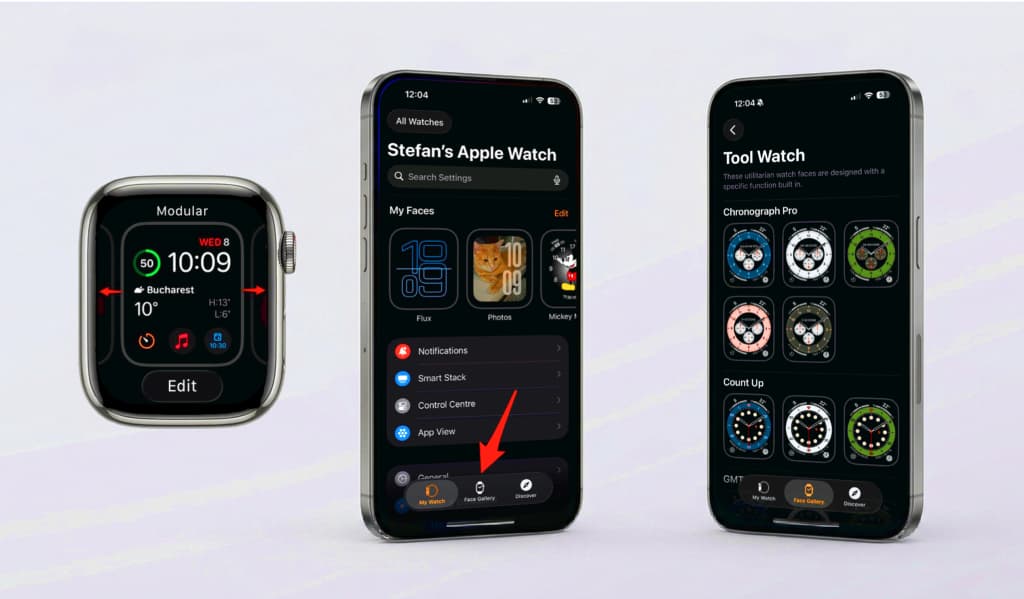
The quickest method is to switch faces from the watch itself. Use this when the face you want is already saved in your collection.
- Wake the display: Raise your wrist or tap the screen so the current watch face is visible.
- Open the face selector: Touch and hold the watch face until the saved face cards appear.
- Browse your faces: Swipe left or right to move through the faces already on your Apple Watch.
- Choose the face: Tap the face you want, and it becomes the active Apple Watch face.
If you want to adjust the face before using it, tap Edit while the selector is open. Depending on the face, you can change colors, style, layout, and complication slots. Press the Digital Crown when you are done.
Change the watch face from iPhone
The iPhone Watch app is better when you want a larger preview or want to compare multiple designs before choosing one.
- Open the Watch app on your iPhone.
- Tap Face Gallery at the bottom of the screen.
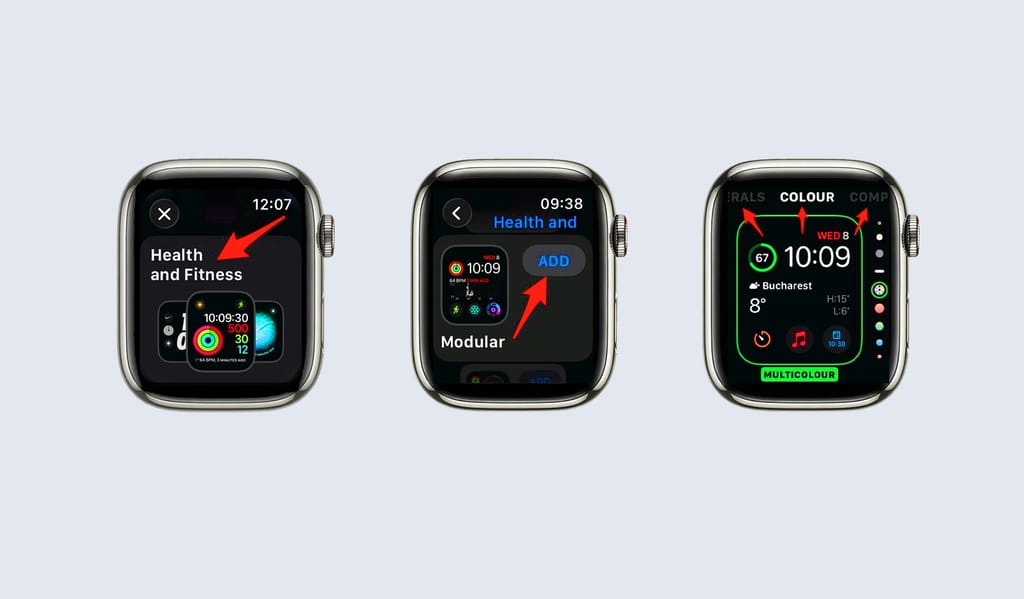
- Choose a face or browse a category such as Health and Fitness, Photos, or Data Rich.
- Adjust the color, style, and complication positions that are available for that face.
- Tap Add to Watch to send the face to your Apple Watch.
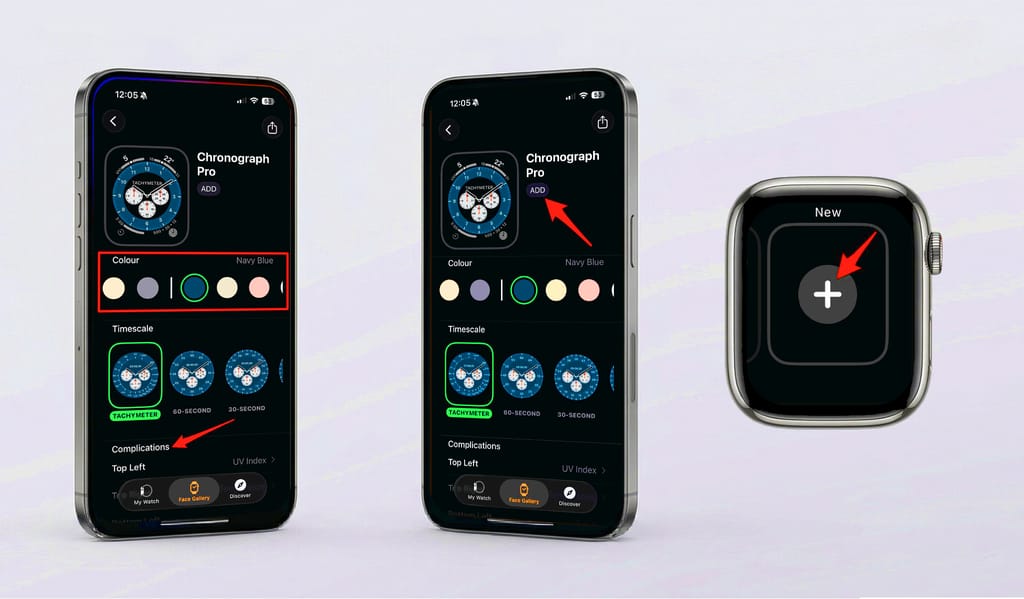
Using the iPhone is also the easiest way to fine-tune complications because you can see the full list of available options without working on the smaller watch screen.
Add a new clock face on Apple Watch
If the face you want is not already saved, add it from the watch and then customize it before you settle on the final layout.
- Touch and hold the current face, then swipe left until you reach New.
- Tap the plus button to open the available face collections.
- Choose a category or scroll through the full list of watch faces.
- Tap the face you want, then use the available color, style, and complication controls.
- Press the Digital Crown to save the new clock face to your collection.
This is useful if you want separate faces for different routines, such as one simple face for meetings and one data-heavy face for workouts.
Switch between saved faces quickly
Once you have several faces saved, you do not need to rebuild the setup each time. Switch between them from the selector, or turn on swipe switching for faster access.
- From the selector: Touch and hold the watch face, swipe to another saved face, and tap it.
- With swipe switching: Open the Watch app on iPhone, go to My Watch > Clock, and enable Swipe to Switch Watch Face.
- From the watch: You can also check Settings > Clock on Apple Watch for the same swipe switching option.
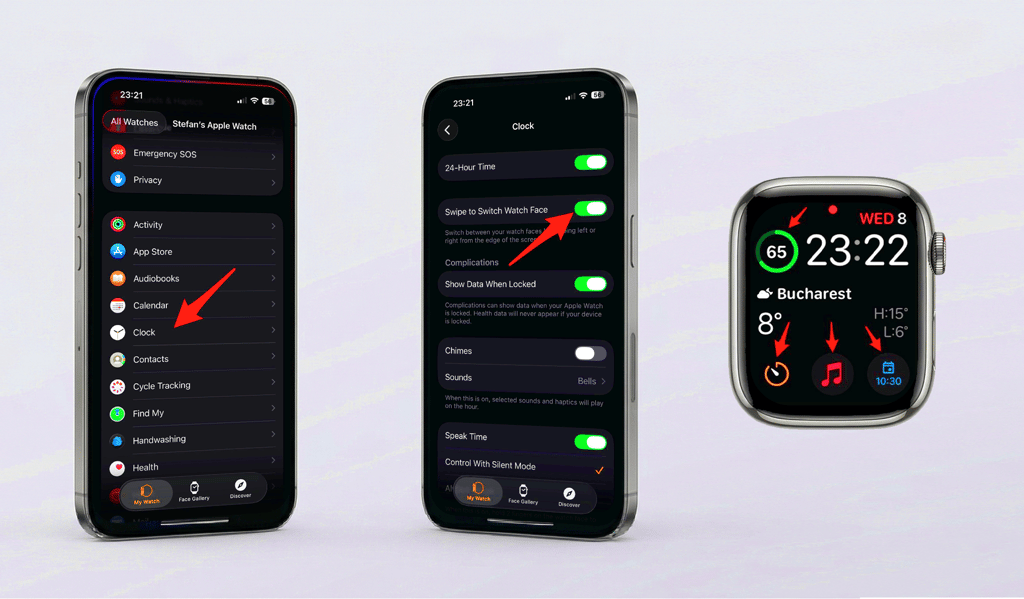
Swipe switching is handy when you keep one face for work, one for fitness, and one for evenings. If the edge swipe does nothing, check the Clock setting first.
Customize colors, styles, and complications
Changing the face is only the start. The best Apple Watch setup usually comes from tuning what the face shows.
- Colors and styles: Many faces let you choose accent colors, numerals, dial styles, or backgrounds.
- Complications: Add small widgets for weather, calendar events, activity, timers, music, battery, or other information you check often.
- Different moments: Keep a simple face for focused time and a more detailed face for workouts, travel, or weekends.
Keep a small, useful collection
It is tempting to save every face you test, but a short collection is easier to use. Keep the faces that solve a real need, then remove the ones you never pick.
Final thoughts
Once you know where the controls live, changing your Apple Watch face takes only a few seconds. Start with the face selector on the watch for quick changes, use the iPhone Face Gallery for deeper customization, and keep swipe switching on if you move between faces often.
If you are changing faces because you want a fresh visual style, you can also browse the Watch Faces gallery for wallpaper-style Apple Watch looks.
Frequently Asked Questions
Touch and hold the current watch face, swipe through your saved faces, then tap the face you want. If swipe switching is enabled, you can also swipe from the edge of the active face.
Open the Watch app on iPhone, tap Face Gallery, choose a face, adjust the style or complications, then tap Add to Watch.
With the current face showing, touch and hold the display, swipe left to New, tap the plus button, choose a collection, then add and customize the face.
Yes. You can keep multiple faces in your collection and switch between them for work, workouts, weekends, or any setup you use often.
Swipe switching may be turned off. Open the Watch app on iPhone, go to My Watch > Clock, and enable Swipe to Switch Watch Face. You can also check Settings > Clock on Apple Watch.