Apple Watch Not Charging? Fixes in Order (2026)

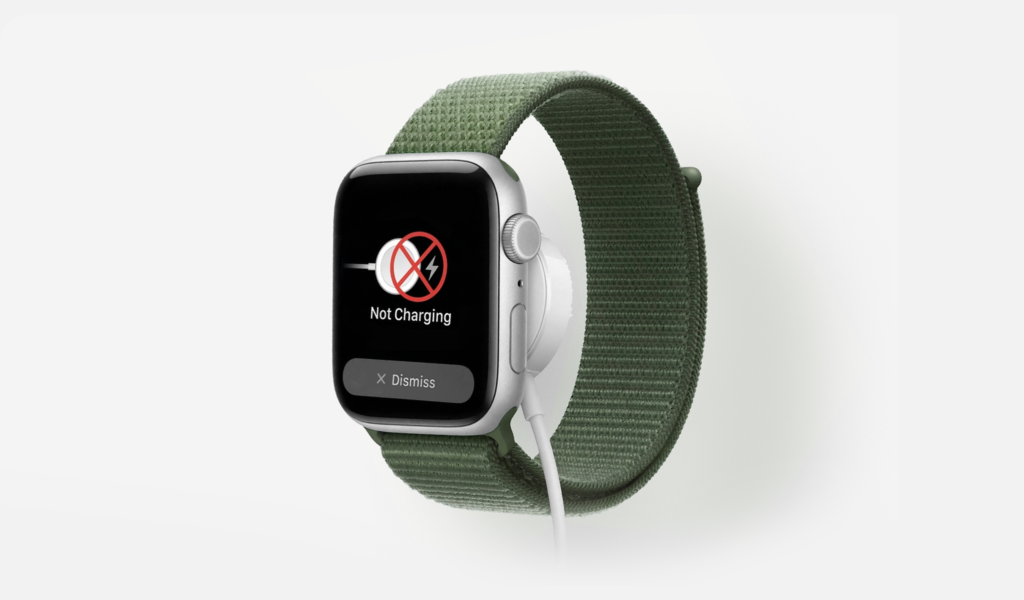
There’s nothing more frustrating than placing your Apple Watch on its charging puck only to find it still dead hours later. If your Apple Watch is not charging, you’re not alone. This is one of the most common issues Apple Watch owners face across all models, from the Series 4 to the latest Ultra 3. Understanding why not charging issues occur is the first step to fixing them. The good news? Most charging problems can be resolved without a trip to the Apple Store. This guide walks you through proven fixes in the order you should try them, starting with the simplest solutions and progressing to more advanced troubleshooting.
Start with the Basics: Clean Everything
Before diving into complex solutions, start with the most overlooked fix: cleaning. Your Apple Watch’s charging issues might simply be caused by dirt, dust, or residue blocking the connection between the charging puck and your watch’s back crystal. This is often why not charging problems occur in the first place.
Steps to clean your Apple Watch
- Remove your Apple Watch band completely
- Examine the ceramic back where the charging sensors are located. You’ll see a circular charging area with multiple contact points
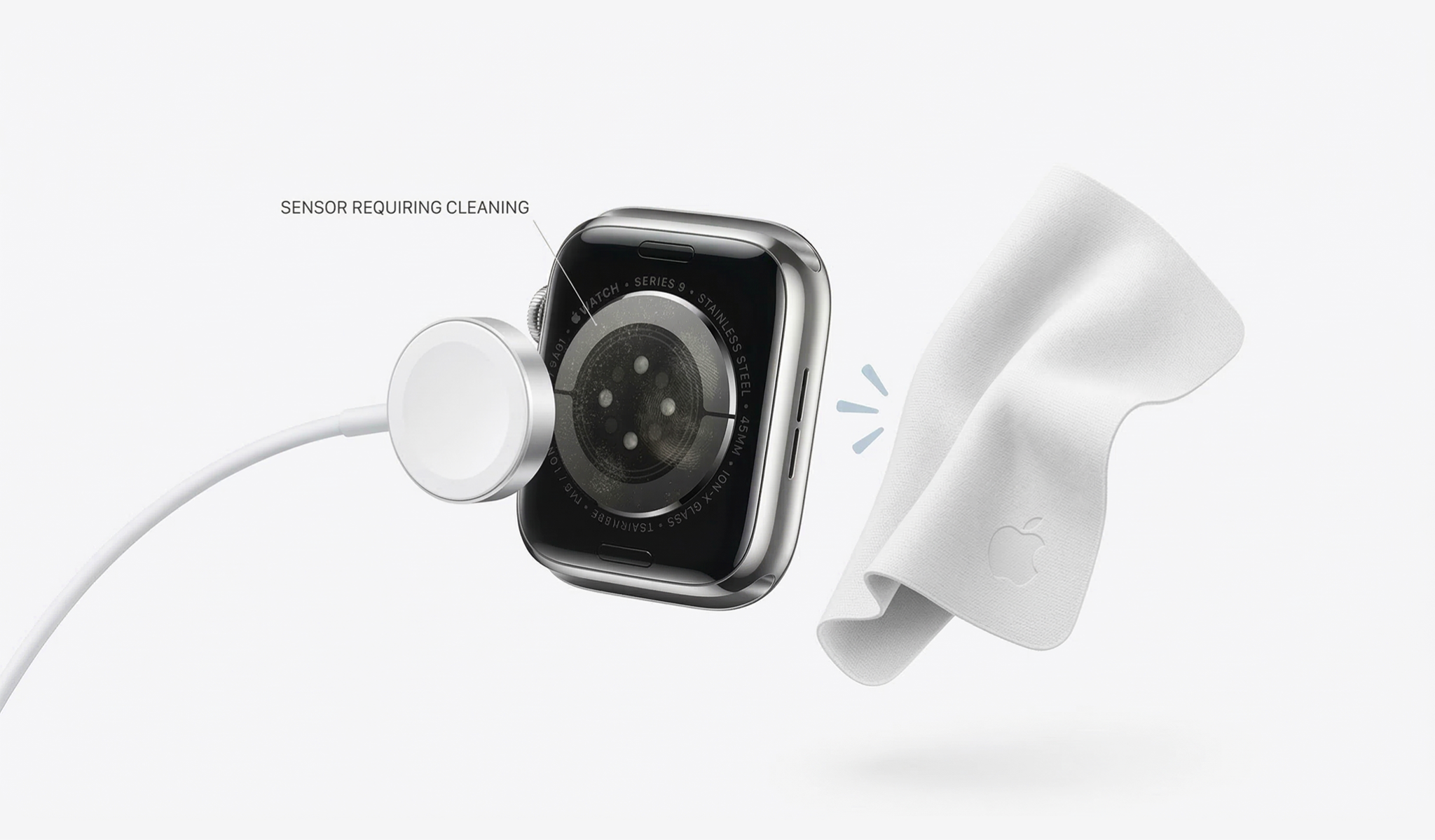
- Use a slightly damp, lint-free cloth to gently wipe this surface
- Pay special attention to the edges where debris tends to accumulate
- Avoid using compressed air, as this can push particles further into the device
Steps to clean your charging puck
- Inspect the magnetic charging surface for lint from pockets, bags, or drawers
- Wipe it down with a lint-free cloth, ensuring the metal contacts are completely clean
- If you notice sticky residue from lotions, sunscreen, or sweat, use a cloth very lightly dampened with isopropyl alcohol
Check Your Power Source and Cable
If your apple watch is not charging after cleaning, the problem might not be your watch at all. Follow these steps:
- Test your power adapter by plugging it into a different outlet. Wall outlets can fail, and power strips can have dead ports
- If possible, plug directly into a wall outlet rather than using an extension cord or power strip
- Inspect your charging cable carefully for visible damage: frayed wires, bent connectors, or discoloration
- If you have access to another Apple Watch charging cable, swap it out to test
- Try using a different USB power adapter. Apple recommends using a 5W USB adapter or higher for optimal charging
The cable that connects your charging puck to the power adapter is a common failure point. Apple’s MagSafe chargers for Apple Watch are designed to be durable, but they’re not indestructible, especially if they’ve been repeatedly coiled tightly or had heavy objects placed on them. Some third-party adapters don’t provide consistent power delivery, which can prevent your watch from charging properly.
Restart Your Apple Watch
A simple restart can resolve temporary software glitches that prevent charging.
If your Apple Watch has battery life
- Press and hold the side button until you see the Power Off slider
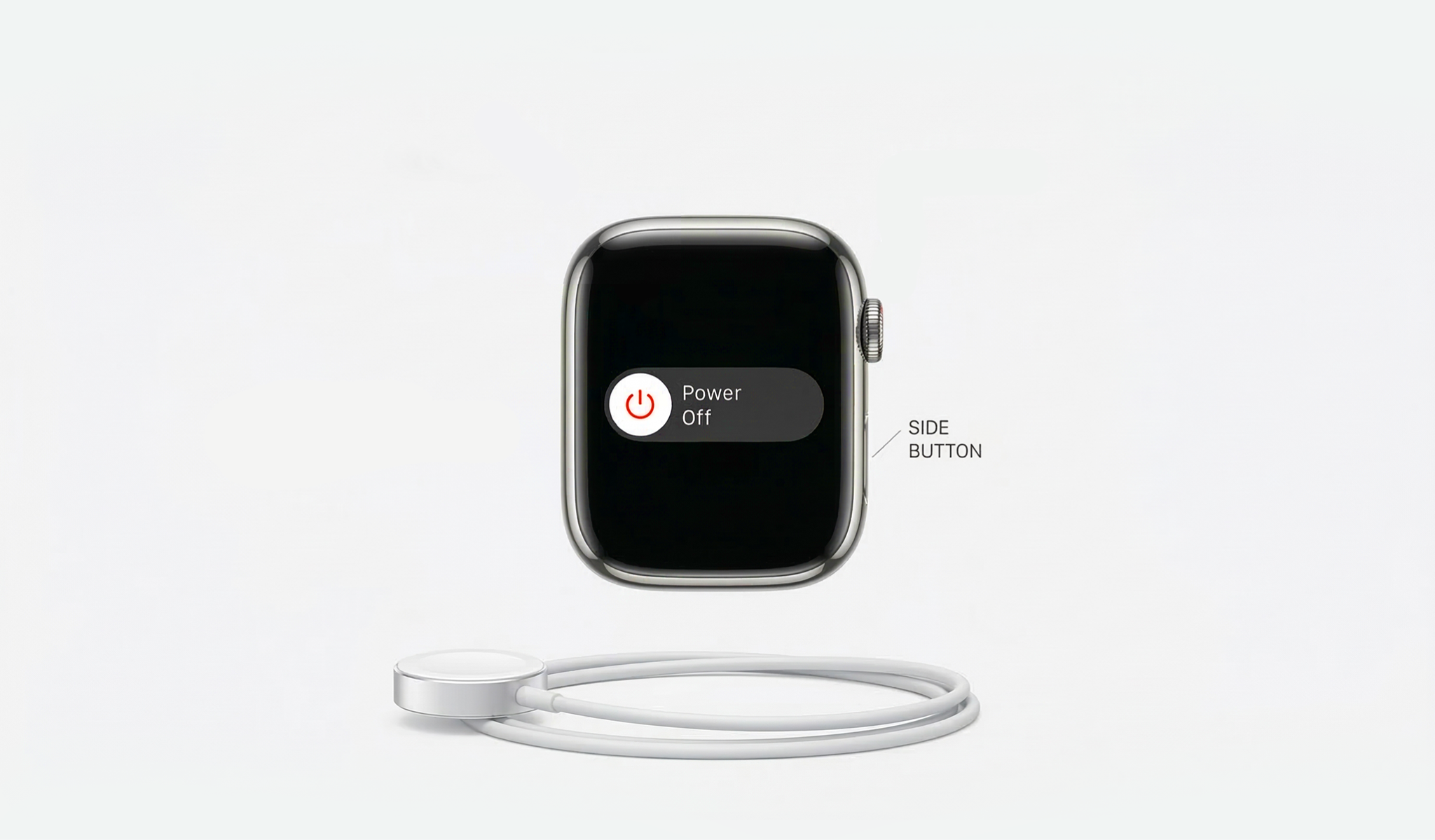
- Drag the slider to shut down
- Wait 30 seconds
- Press and hold the side button again until you see the Apple logo
If your watch is completely dead
- Place it on the charger
- Leave it there for at least 30 minutes before attempting to power it on
- Sometimes a deeply drained battery needs time to accept a charge before it will display any signs of life
Force Restart for Stubborn Cases
When your apple watch is not charging and a normal restart doesn’t work, try a force restart. This is particularly effective if your watch appears frozen or unresponsive.
Steps to force restart
- Press and hold both the side button and the Digital Crown simultaneously
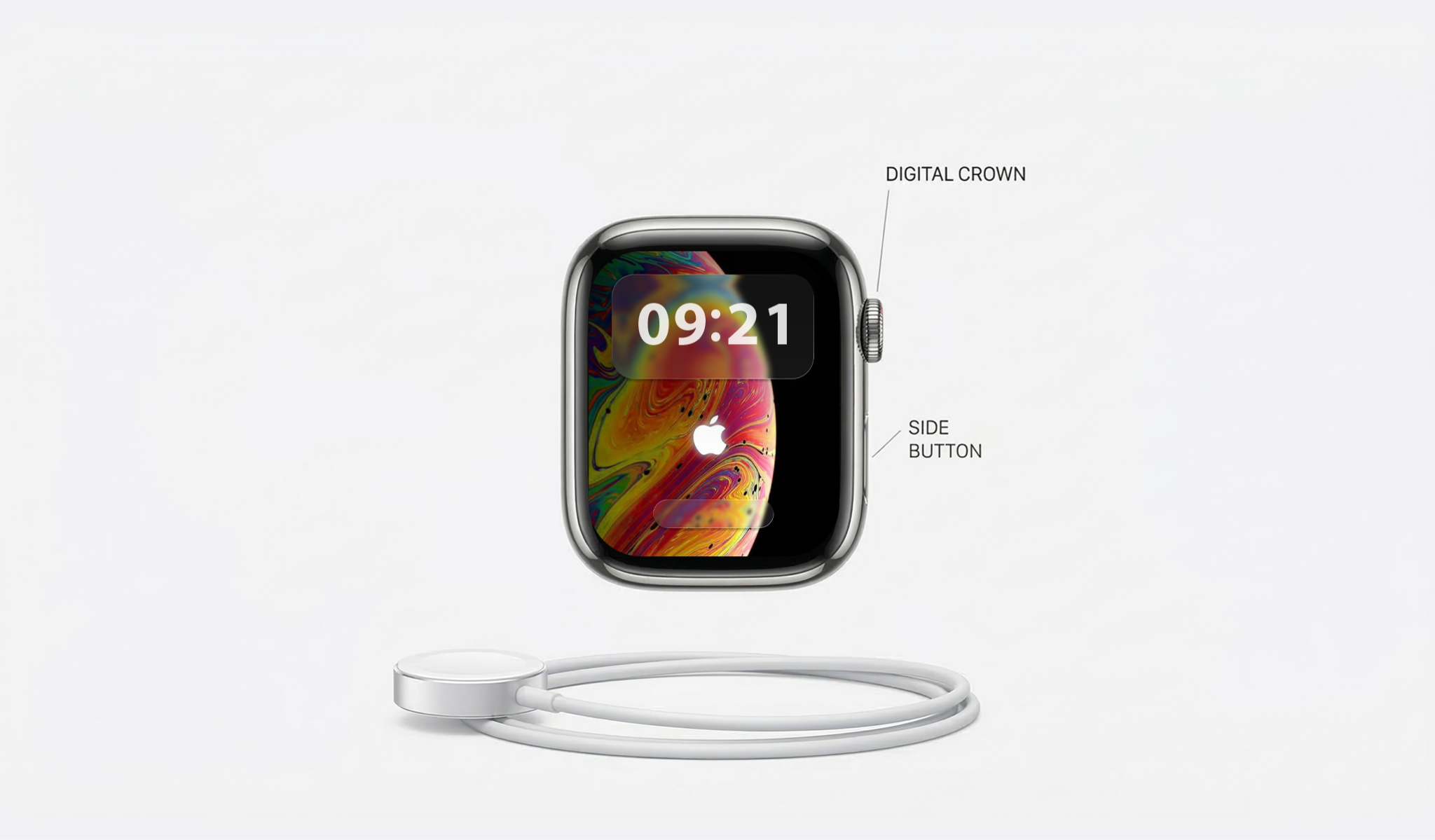
- Continue holding for at least 10 seconds
- Wait until you see the Apple logo appear
- Release both buttons and allow your watch to restart
- Place your watch back on the charger
You should see the charging symbol (a green lightning bolt or a green charging cable icon) appear on the screen within a few seconds.
Check for Software Updates
Outdated software can sometimes cause charging problems. If your watch has enough battery to navigate settings, follow these steps:
- On your paired iPhone, open the Watch app
- Tap General
- Tap Software Update
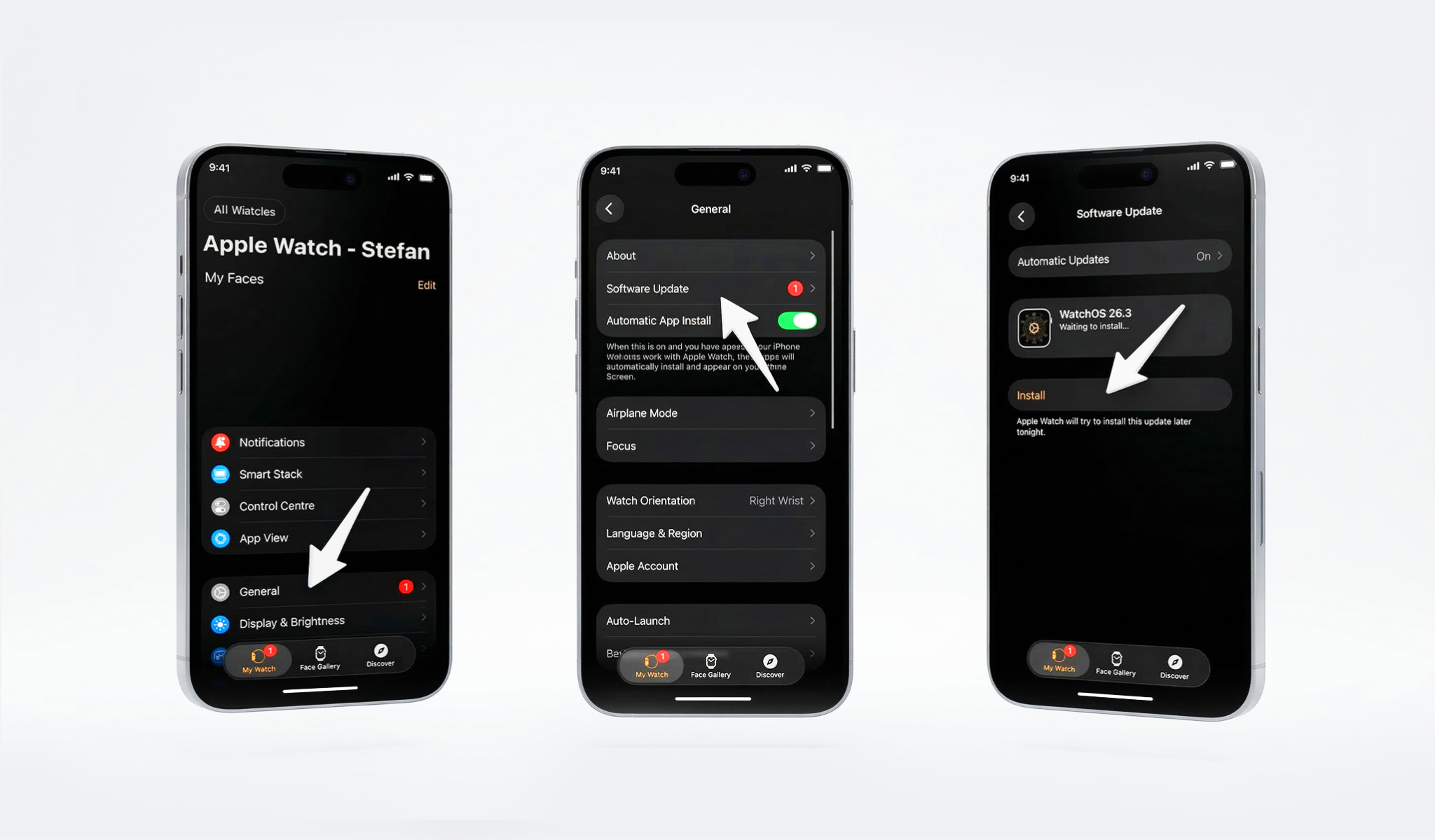
- If an update is available, ensure your watch is on its charger with at least 50% battery
- Install the update
Apple regularly releases watchOS updates that fix bugs, including charging-related issues. In 2026, ensuring you’re running the latest version of watchOS is more important than ever as Apple continues to optimize battery management and charging efficiency.
Verify Proper Magnetic Alignment
Your Apple Watch uses magnetic induction to charge, which requires precise alignment. Follow these steps:
- Place your watch on the charging puck. You should feel a satisfying magnetic snap
- If this doesn’t happen, the watch and charger aren’t properly aligned
- Try rotating your watch slightly on the puck until you feel that magnetic pull
- Make sure nothing is interfering with the connection (no case, no screen protector extending too far onto the back, and no debris you might have missed during cleaning)
- Verify the watch sits flat and centered on the puck
Temperature Check
Apple Watch has built-in temperature safeguards that prevent charging in extreme conditions. The ideal charging temperature range is between 50° and 95° Fahrenheit (10° to 35° Celsius).
If temperature is the issue
- Check if you’ve left your watch in a hot car or brought it in from freezing temperatures
- Let it return to room temperature before attempting to charge
- Look for a temperature warning icon on your watch face. This confirms that temperature is the problem
- Wait 15-30 minutes in a normal room temperature environment
- Try charging again once the watch has normalized
Try a Different Charging Location
Electromagnetic interference from other devices can sometimes disrupt charging. Move your charging setup away from other electronics, wireless chargers, or metal objects. Try charging in a different room entirely to rule out environmental factors.
Check for Physical Damage
Examine your Apple Watch’s back crystal carefully. If it’s cracked, separated from the body, or showing signs of water damage, this could be why not charging issues are happening. Physical damage can prevent proper charging contact. Similarly, if your watch has been dropped or impacted, internal damage might be preventing the charging circuitry from functioning.
Battery Health Consideration
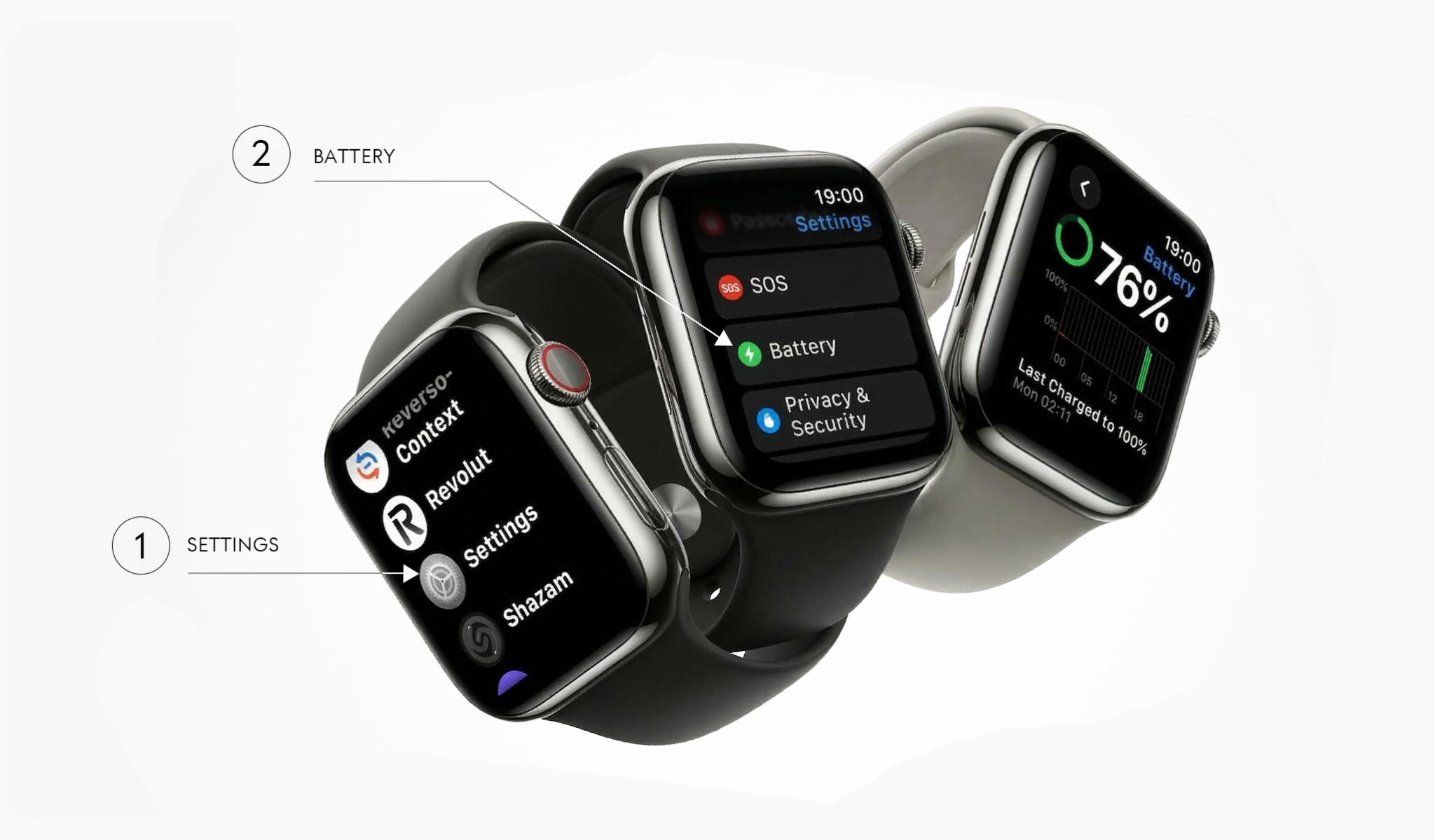
If your Apple Watch is several years old, battery degradation might be affecting its ability to hold or accept a charge. While this doesn’t typically prevent charging entirely, an aging battery can exhibit odd behavior. Check your battery health in Settings > Battery > Battery Health on your watch. Apple provides detailed information about maximizing battery performance across all their devices.
When to Seek Professional Help
If you’ve tried all these fixes and your Apple Watch is not charging, it’s time to contact Apple Support or visit an Apple Store. You may have a hardware failure that requires professional repair or replacement. If your watch is still under warranty or covered by AppleCare+, you’ll have options for repair or replacement at reduced or no cost. You can schedule an appointment with Apple Support to get your watch examined by a certified technician.
Most charging issues stem from simple problems with easy fixes. By working through these solutions systematically, you’ll likely get your Apple Watch charging again without needing professional intervention. Remember: always start simple and work your way up to more complex solutions.
Frequently Asked Questions
About 2.5 hours from completely dead to 100%. You should see a charge indicator within 30 minutes. If nothing appears after 30 minutes, try the troubleshooting steps above.
You can use the iPhone’s USB power adapter (5W or higher), but you still need the Apple Watch magnetic charging cable. The Apple Watch cannot charge wirelessly on a Qi charger or MagSafe charger designed for iPhone.
This is the Optimized Battery Charging feature preserving battery health. It learns your routine and waits to finish charging past 80% until you need it. You can disable this in Settings > Battery > Battery Health > Optimized Battery Charging.
This usually means a faulty charging cable or a worn-out battery. Try a different cable first. If the problem persists, your battery may need professional replacement, especially if your watch is more than 3 years old.
Sometimes, yes. WatchOS updates can fix charging bugs and improve battery management. However, software updates can’t fix hardware issues like a damaged charging coil or degraded battery.
Yes, completely safe. The watch has safeguards that prevent overcharging and stops drawing power at 100%. With Optimized Battery Charging enabled, it may hold at 80% and complete charging closer to your wake time.