How to Set Up Sleep Tracking on Apple Watch

Apple Watch sleep tracking can show when you slept, how long you stayed asleep, and how your night was divided into stages. Once the feature is configured, the watch can collect that data in the background while you wear it to bed.
This guide walks through the full setup, shows where to find the Sleep controls on iPhone and Apple Watch, and covers the habits that help you get more complete overnight data.
How Apple Watch Sleep Tracking Works
Apple Watch uses motion and heart-related signals gathered during the night to estimate your sleep. Those signals work together with the Sleep settings on your iPhone so the watch knows when to start logging a sleep session.
The setup happens in the Health app on iPhone, while the watch records the overnight data and sends it back to Health for review. Once everything is enabled, the process is mostly hands-off.
Which Sleep Stages Apple Watch Tracks
In the Health app, Apple breaks your overnight data into sleep stages that are easier to review at a glance. That usually includes time awake as well as time spent in REM, Core, and Deep sleep.
- Awake: short wake periods during the night.
- REM: the stage often associated with dreaming and memory processing.
- Core: the broader stage that covers a large share of typical overnight sleep.
- Deep: the stage linked to physical recovery and lower body movement.
The value is not limited to a single night. Over time, the trends can help you spot whether you are getting enough sleep and whether your routine is becoming more consistent.
How to Set Up Sleep Tracking on Apple Watch
If you have never used Apple Watch sleep tracking before, the setup only takes a few minutes.
- Update your iPhone and Apple Watch to the latest iOS and watchOS versions available for your devices.
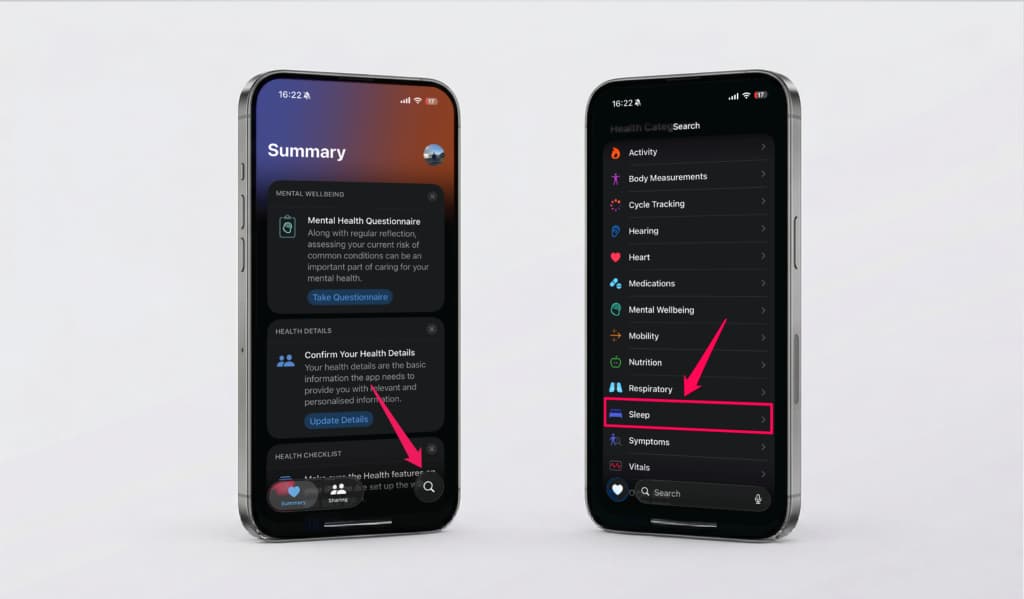
- Open the Health app on iPhone, tap Browse, then choose Sleep.
- Under No Data Available, tap Sleep. Under Your Schedule, tap Add.
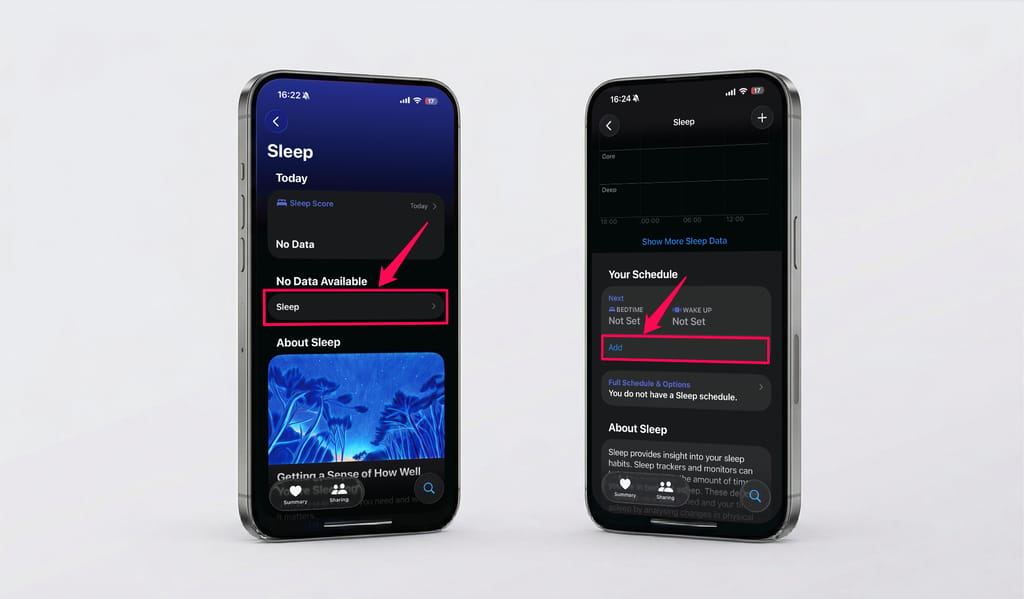
- Create your sleep schedule by choosing your bedtime, wake time, and any weekday or weekend variations you want Apple Watch to follow.
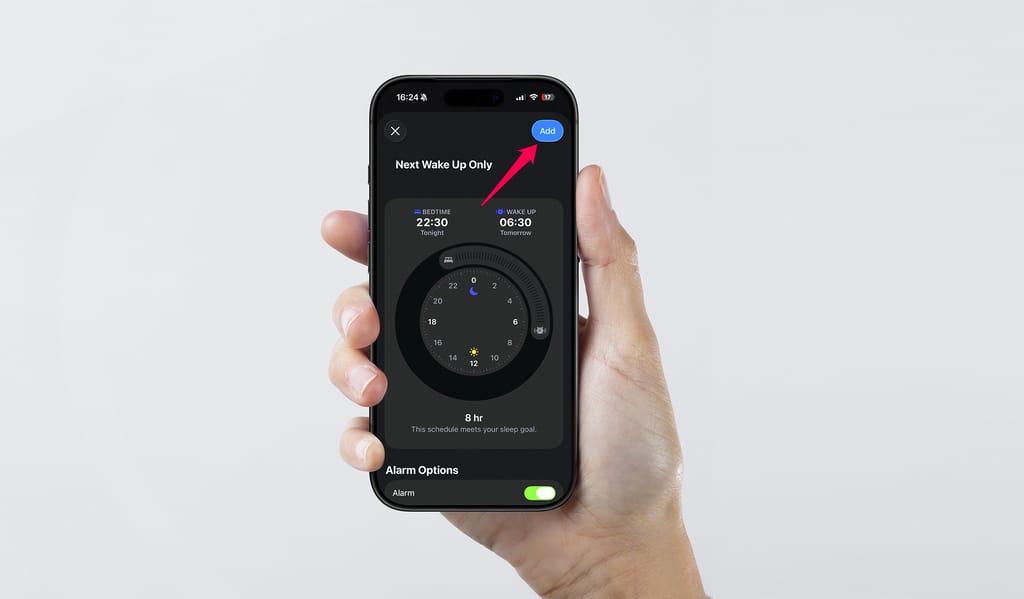
- Enable Sleep Focus so alerts are reduced during your scheduled sleep window.
- Wear the watch to bed with enough battery to last through the night and the next morning.
After your first night, open the Health app again to confirm that the watch recorded sleep as expected. If data is missing, check your fit, battery level, and Sleep settings before the next night.
How to Improve Apple Watch Sleep Tracking Accuracy
A correct setup matters, but your nightly routine matters too. Small changes can make Apple Watch sleep data more complete and easier to trust from one night to the next.
Wear the watch snugly so the band stays secure without feeling tight. That helps the sensors maintain steady contact with your skin while you sleep.
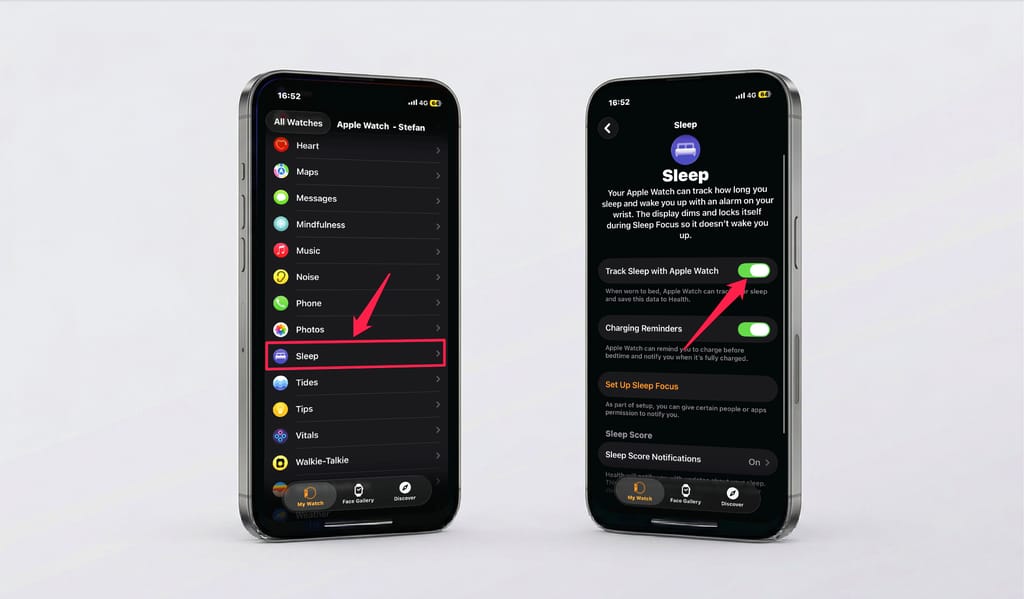
Turn on Track Sleep with Apple Watch in the Watch app so the watch can capture overnight sleep data consistently. Apple Watch also works best when your bedtime and wake time stay reasonably consistent and you leave enough time to charge before bed.
If your results still look incomplete, focus on the basics first: battery, fit, and whether the watch stayed on your wrist for the full night. Those three factors explain most missing entries.
How to View Your Sleep Data in Health
Each morning, you can review the previous night in the Health app on iPhone. Open Health, tap Browse, then return to Sleep to see the latest charts and summaries.
What You Can Review in the Health App
- Total time asleep for the night.
- A breakdown of recorded sleep stages.
- Overnight patterns across the last week, month, or longer.
- Whether your sleep schedule is staying consistent over time.
This is where Apple Watch sleep tracking becomes most useful. Instead of reacting to a single rough night, you can look for patterns that repeat and adjust your routine from there.
Apple Watch Sleep Tracking Limits to Know
Apple Watch sleep tracking is useful for habit-building, but it is still a consumer health feature rather than a clinical sleep lab. If you think you may have sleep apnea, insomnia, or another medical sleep issue, a healthcare professional is the right next step.
It is also normal to see occasional gaps when the battery is low, the fit is too loose, or the watch comes off during the night. Short daytime sleep sessions may also be less consistent than your main overnight sleep record.
If you want the cleanest possible results, treat the watch as one part of a repeatable sleep routine rather than a perfect medical measurement on its own.
Frequently Asked Questions
Apple Watch can track sleep automatically after you set up Sleep in the Health app and wear the watch to bed. Keeping Sleep Focus and Track Sleep with Apple Watch enabled usually gives you the cleanest results.
You do not need to switch it on manually if your schedule is already set. Sleep Focus can activate on its own during your scheduled sleep window, and it helps dim the display and reduce alerts overnight.
Missing data usually means the watch was not worn long enough, the battery was too low, the fit was too loose for consistent sensor contact, or the Sleep schedule was not fully configured yet.
Yes. Open the Health app on iPhone, go to Browse > Sleep, and review the charts for time asleep and each recorded sleep stage.
No. Apple Watch sleep tracking is useful for spotting patterns and building better habits, but it is not a replacement for clinical testing or medical advice.
Charge enough to comfortably cover the night and the next morning. If your watch regularly runs low before you wake up, add a short charging window before bed or while you get ready in the morning.